Entries tagged as apple
Applico apricot Japan Osaka pie A1522 A1524 A1549 A1586 AT&T Canada Hong Kong iPhone 6 iPhone 6 Plus Korea LTE T-Mobile USA Verizon Apple Store Fukuoka Fukuoka Airport Incheon International Airport subway travel Canal City Hakata Hakata Shinpu Japanese food ramen Ramen Stadium cosmetics Duty-Free Hiyoko Bread Royce Chocolate charger Europe O2E Smart Multi-Charger power plug UK USB iPhone 6S Plus Celine Chung iPhone 7 Wesley Woo-Duk Hwang-Chung castle Ferris wheel park takoyaki camera Ramune restaurant soda Apple Watch iPhone XS chocolate cafeteria cake cheese KPX ticket donut Dunkin Donuts black sesame Choco Pie snack pecan Starbucks almond maple convenience store ice cream cookie Dubai adapter lightning cellphone JooN 2 watch battery cable iOS Micro-USB astronomy Canon EOS 450D Kiwi Fotos KF-8012N Sony A5000 Celestron NexStar 6SE telescope belt case Bluetooth GPS pen dock earphone iPad mini iPhone 5 speaker electricity IoT smart plug socket wire MacBook Air Seoul shopping Yongsan iOS 13 iPhone 11 Pro memory MicroSD storage Canon SX50 HS magnet Bitgaram City iPhone 7 Plus Naju rain satellite TV shower television water card reader mouse embassy passport visa Han-gang iPhone 5S river COEX Samseong skyline smog relocation cabinet Gangnam Hyundai Sonata 2 Kodak DC280 Suwon Yeongdeungpo Yeongtong breakfast McMuffin meal box pancakes building Hyundai KEPCO Parnas Seolleung airplane airport Gimpo Lotte World Seoul National University train mall Gwangju station car electric bookstore gift emart Hayun Chung zoo beverage No Brand soft drink kitchen LG Electronics refrigerator store towel pepperoni pizza bank Hanaro Nonghyup Lotte toy shopping cart hot dog New York Burger Disney Frozen ezguide Gigabit Ethernet ipTIME H5005 NEXT-8305SH switching hub iPark Mall Studio Ghibli Totoro Gwangju Songjeong Station Gyeonggang Line KTX-Sancheon election CGV Last Jedi movie movie theatre Star Wars crypto currency electronics kit Moon Sanyo VPC-C4 satellite Minolta Dimage X20 binoculars Chuseok eclipse Kodak Z1085 IS star Sun iPhone 4 A1533 slow motion A1530 iPhone 4S sound electric fan LED light trail M&M's OIS Cortex Camera Focus Pixels barometer iOS 8 iPad iPhone 3GS iPhone 5C KT LGU+ game Simpsons: Tapped Out passcode Comic Life OS X Crop-Size image resizer Resize Image Resize Photo SimpleResize China lunar calendar iOS 9 watchOS 2 iOS 12 iPad Pro 9.7 iPhone X Nikon CoolPix P1000 Singapore constellation Scorpius Apple TV 4th Gen iOS 14 iOS 15 case repair screen protector glass iPhone 13 Pro iPhone 15 Pro iPhone 14 Pro hub iMac Galaxy S4 Zoom Samsung Mac mini computer HDD keyboard monitor Xbox cooler lamp tester USB-C Native Union bacon baguette bread oven sandwich milk broccoli paprika sausage tortilla Burger King chicken chicken nugget hamburger Whopper bagel tuna tonkatsu fries ramyeon Lotteria diavola lemonade meat vegetable wrap sauce corn dog sweet potato tooth Michuri Mokpo expressway service area Jeju Randy’s Donuts Krispy Kreme air fryer box English muffin Chicken Steak French Roll construction carrot Dole Fruit Pop juice beet McDonald's Monopoly Popsicle Ssangssang-bar Palazzo deal Freddo honey butter Honey Ice fan bungeoppang Baskin Robbins 31 bar ice peach dinosaur jelly Shrek affogato coffee candy icicle coffee shop steamed bun butter peanut Skippy Costco instant noodles TodaysPPC tomato health drink grape aronia banana calamansi carbonated water powder grapefruit coconut orange lemon pineapple Myeongdong Apple TV 4K iOS 16 iPhone SE Apple Arcade Apple Music Apple TV+ SK Telecom butadon museum tower boat Busan hydrofoil AirTag IPTV SK Broadband Angry Birds controller iOS 17 chip London Vodafone weather Irn-Bru Ribena Schweppes Volvic agave syrup red ginseng Oronamin-C Glonsan Vermont nourishment drink soy Doutor beer Bundaberg ginger ale Lemon Lime Bitters pencil Live Wire Mountain Dew black tea latte Garcinia Cambogia Get It Slim Nexon Play Stardium Energy apple juice green tea Pokémon tea Mind Point Chilsung Strong Cider AirPod turntable Mac Studio server Mavericks network MySQL Yosemite coaxial cable EyeTV El Capitan macOS Sierra LG IPS237L-BN service center ketchup mustard primaries piano ukulele baked bread champon EXO jajangmyeon Shinee Super Junior cheese stick Sung-Eun Kim gummi bear Haribo fish hamster parrot dog Lego Daepoong Electron Street Chungjang-ro iPhone 6+ Gravity IMAX Interstellar Megabox Mockingjay popcorn The Hunger Games Prosperity Burger Chappie Japanese Macaque monkey pipe Uchi Zoo bear cougar hippopotamus tiger peacock goat raccoon kiwi fruit pear Oband T2 water resistance Nintendo Wii running swimming Wii Fit Plus barcode remote control screen performance Yunmai Smart Scale app iOS 10 watchOS 3 Series 2 band A1779 Touch ID 3DMark Geekbench Octane SunSpider
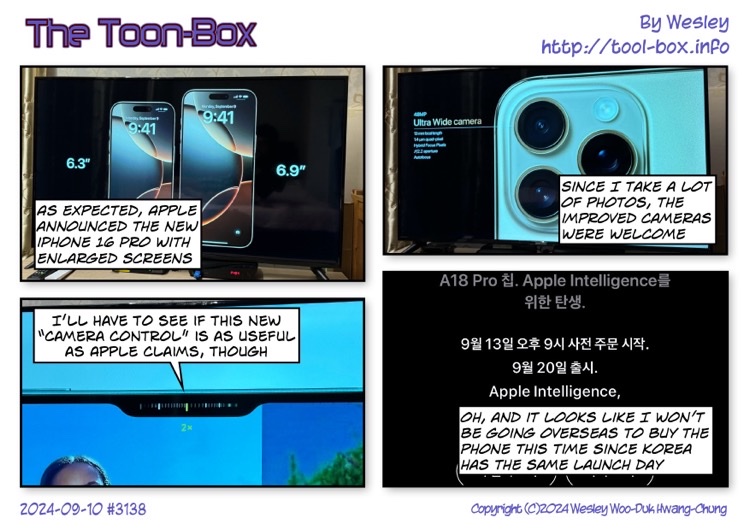
Today’s “The Toon-Box”
Posted by Wesley on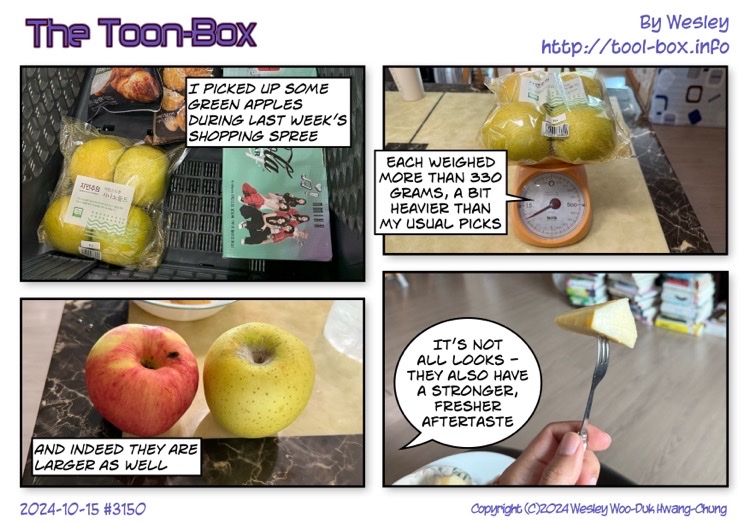
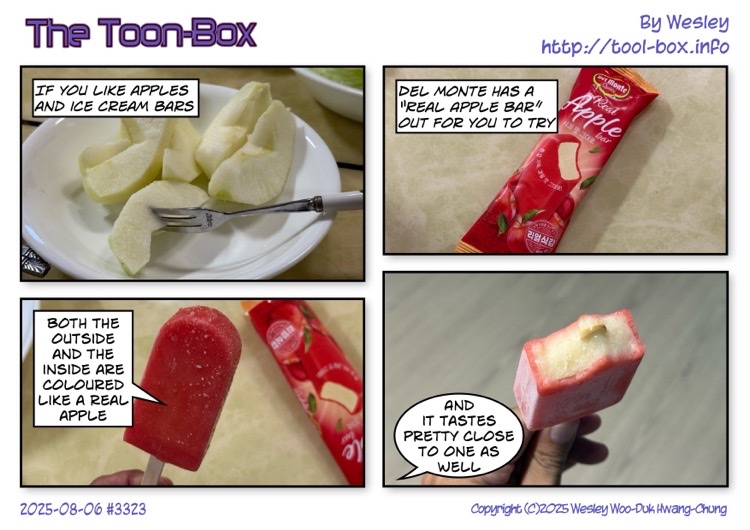
Today’s “The Toon-Box”
Posted by Wesley on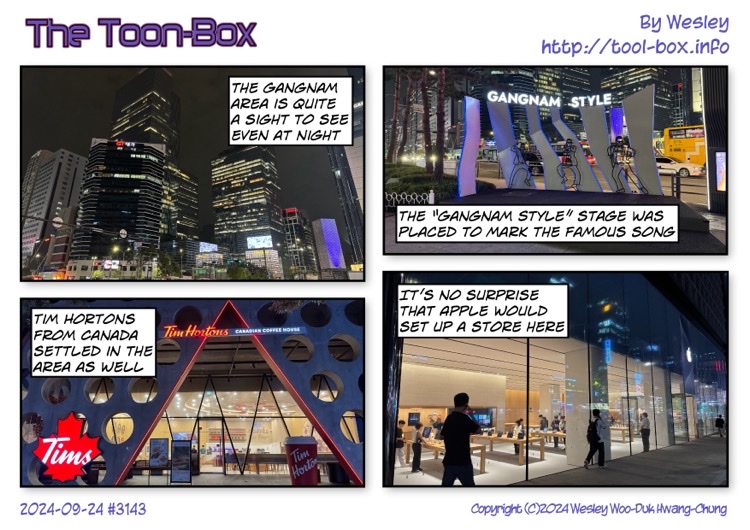
Today’s “The Toon-Box”
Posted by Wesley on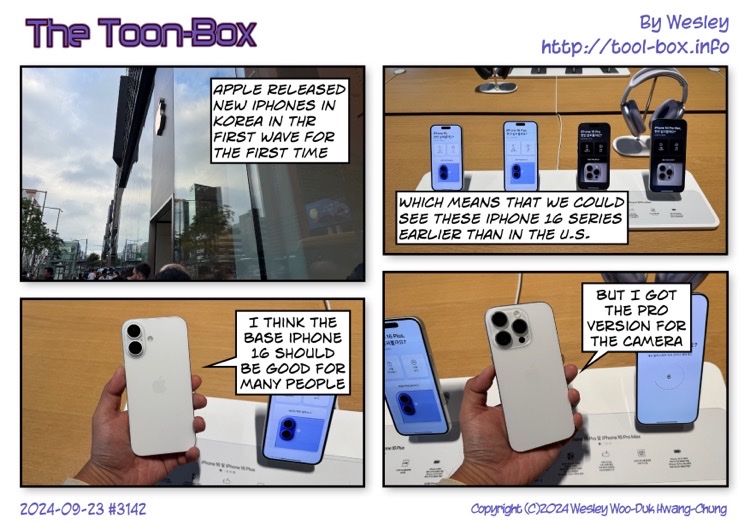
Today’s “The Toon-Box”
Posted by Wesley on